Quick start快速开始
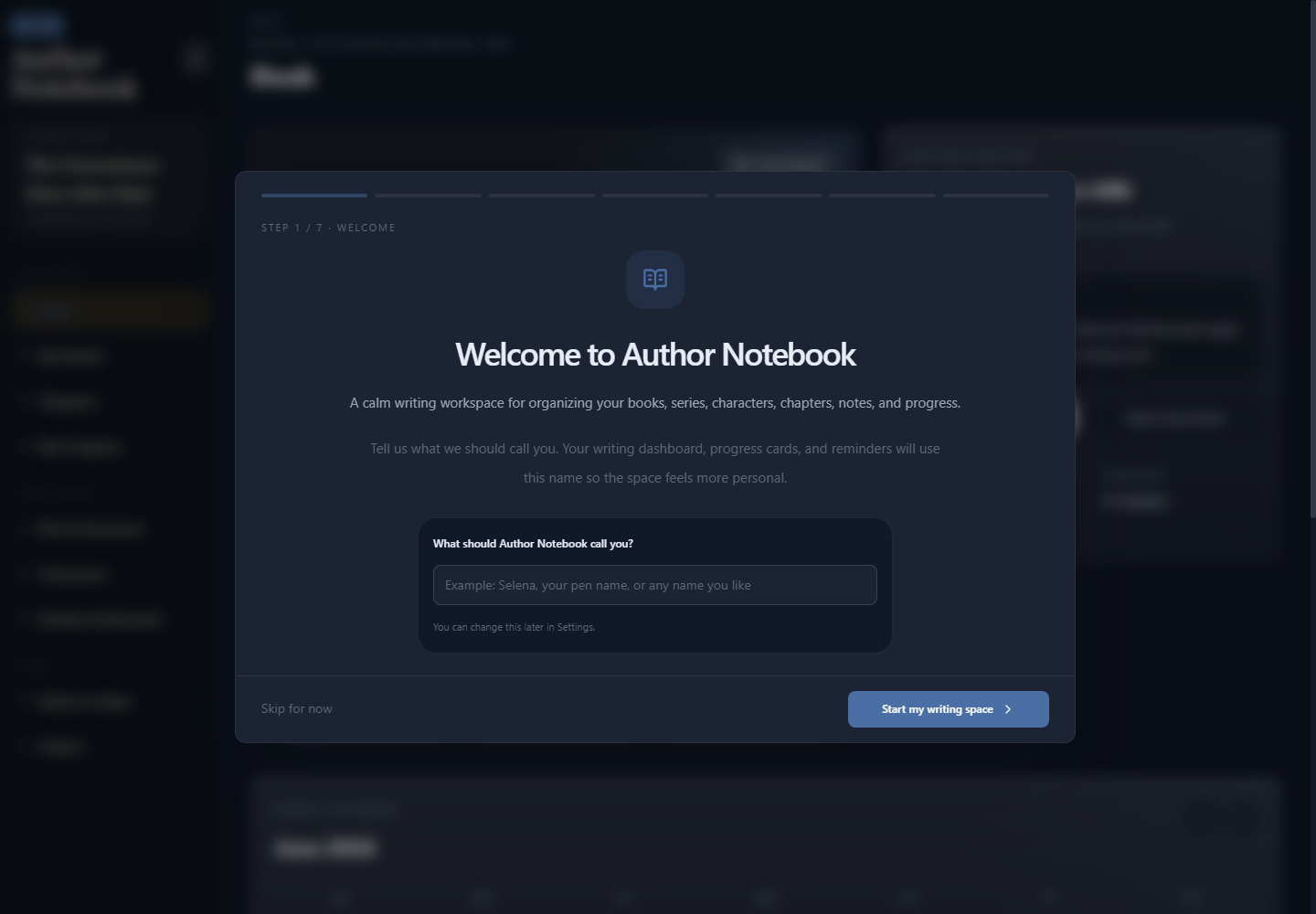
Author Notebook is built for writers who need one calm place for drafts, chapters, characters, story settings, notes, and progress. You can use it locally without an account, or sign in to use Cloud Projects.作者笔记是为创作者准备的安静写作空间:稿件、章节、人物、世界观、灵感、进度都可以放在同一个地方。你可以不登录、本地使用,也可以登录后使用云端项目。
Desk书桌
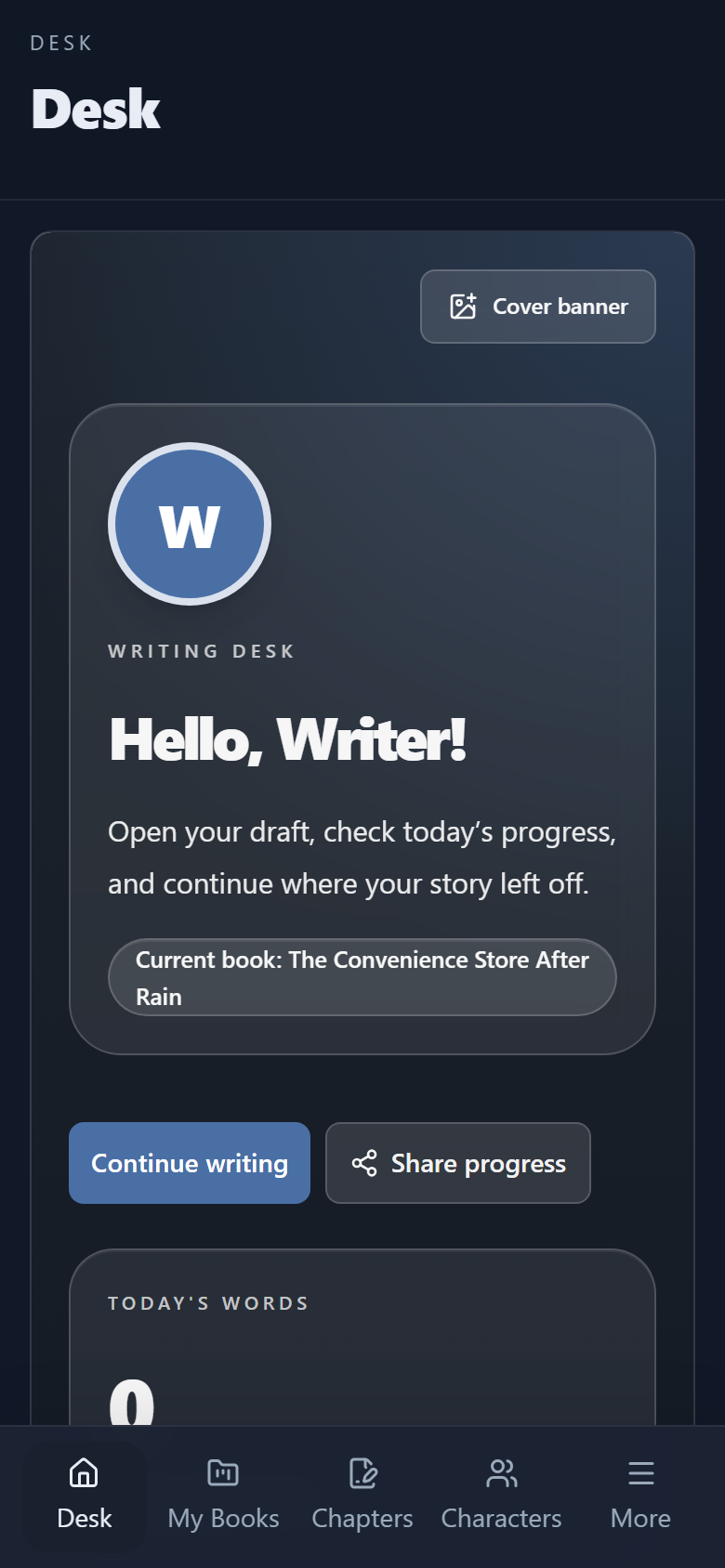
The Desk is your home dashboard. It shows your current book, a quick Continue Writing action, today’s writing progress, and a small author note to help you restart gently.书桌是首页仪表板。这里会显示当前书本、继续写作入口、今日写作进度,以及帮助你重新进入状态的作者小笔记。
If you added a display name during onboarding, the greeting will use it. You can update your display name later in Settings.如果你在新手引导中填写了显示名称,首页问候会使用这个名字。之后也可以在设置中修改。
My Books我的书
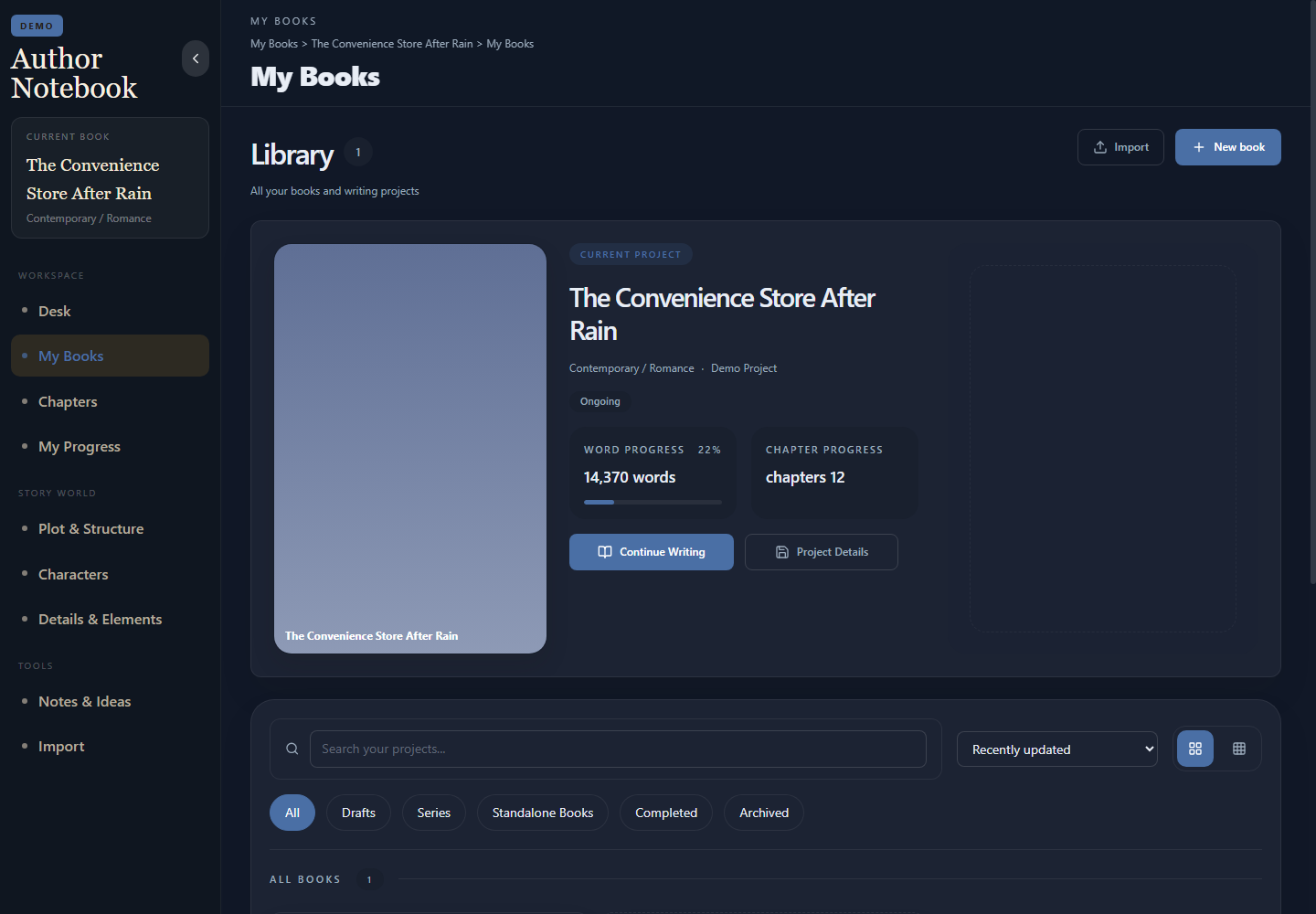
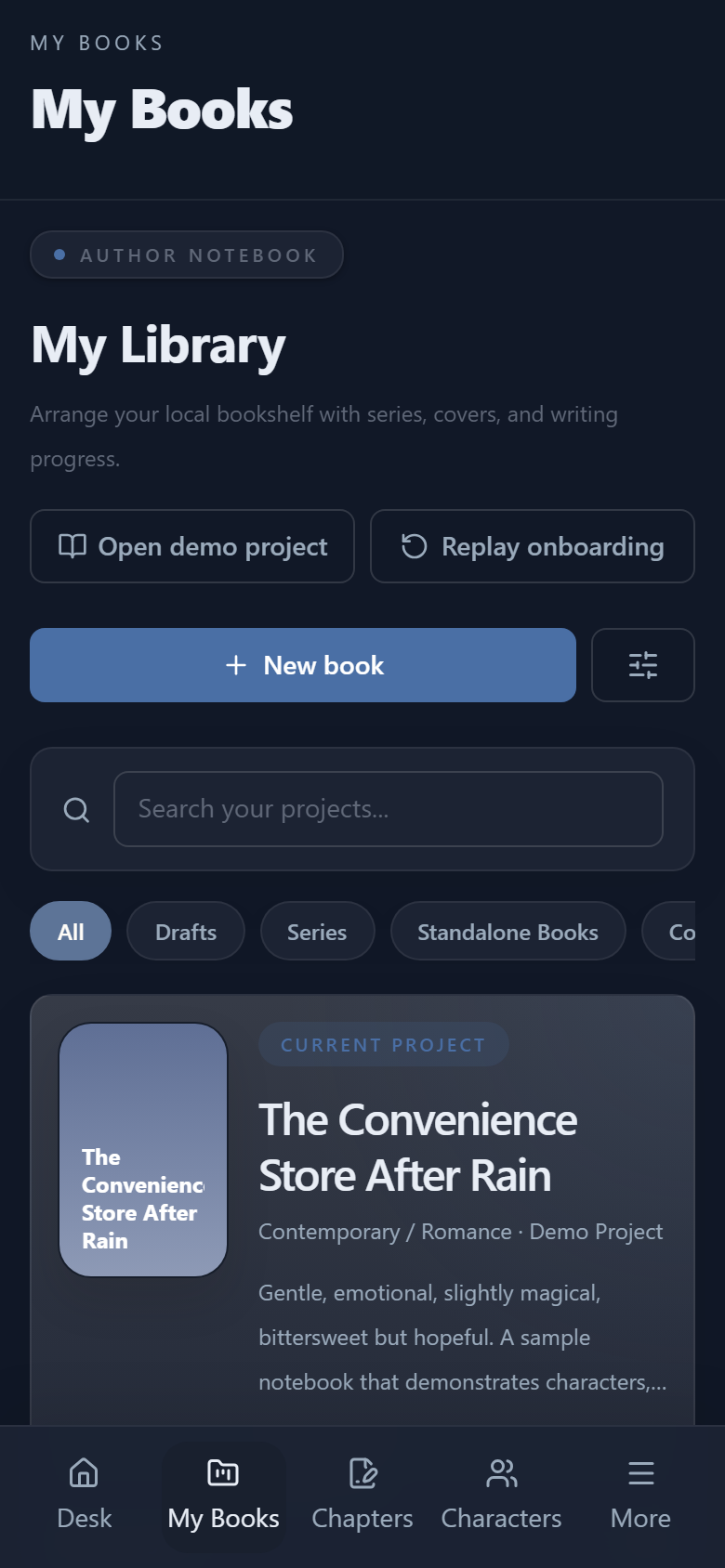
My Books is your project library. Each book can include a cover, title, genre, status, synopsis, word goal, chapter progress, and series information.我的书是你的项目书架。每本书都可以包含封面、书名、类型、状态、简介、目标字数、章节进度与系列信息。
Useful actions常用操作
- Open Book makes that book the active workspace.打开书本会把这本书设为当前工作项目。
- Edit Book lets you update cover, genre, status, summary, series, and book details.编辑书本可以更新封面、类型、状态、简介、系列与书本资料。
- Continue Writing opens the current or latest chapter.继续写作会打开当前或最近的章节。
- Series helps you group Book 1, Book 2, side stories, and rewrites without mixing them with standalone novels.系列可以把第一部、第二部、番外和重写版本归在一起,不会和独立作品混在一起。
Existing books without series data remain standalone. Creating or deleting a series does not delete the books inside it.没有系列资料的旧书会保持为独立书本。创建或删除系列不会删除系列里的书。
Chapters & writing章节与写作
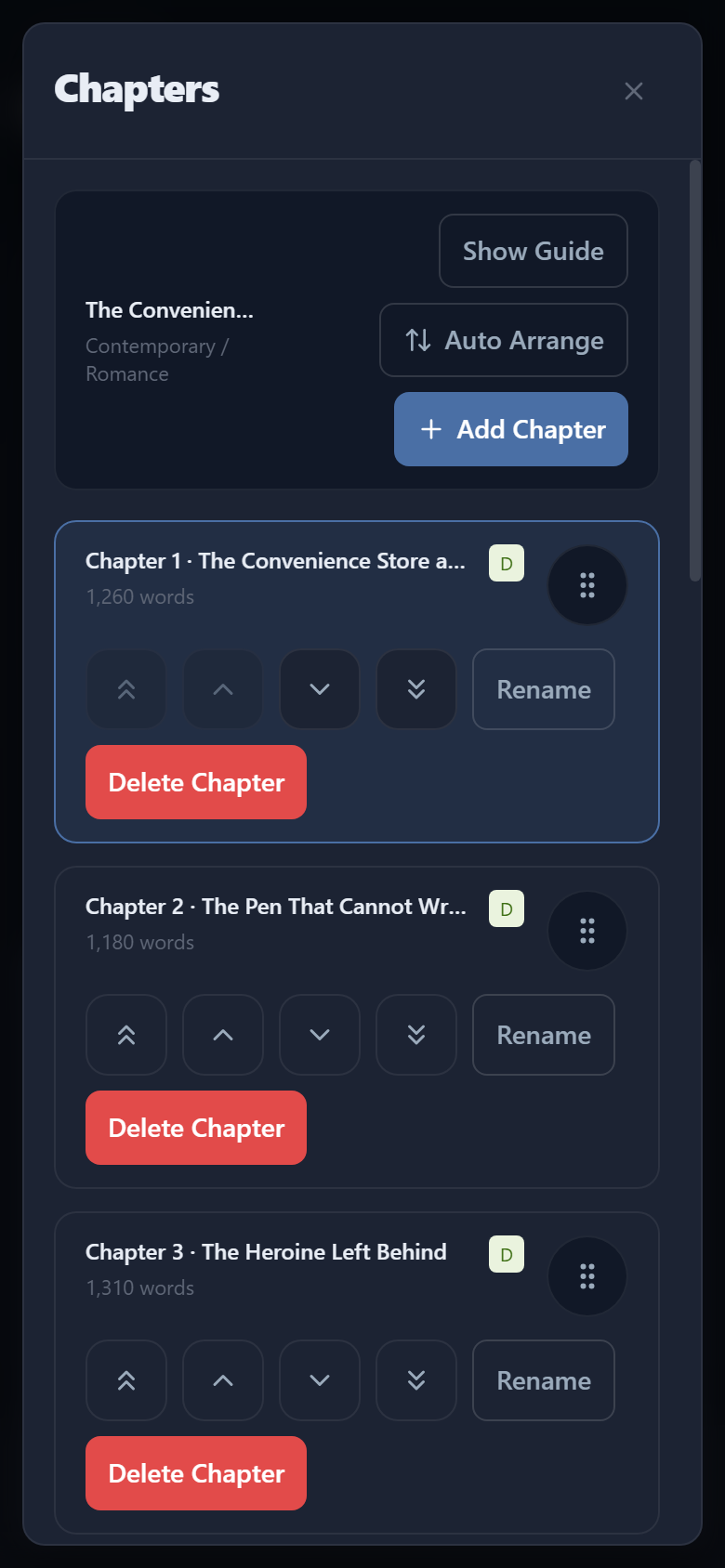
Chapters is where you draft the manuscript. You can create chapters, rename them, reorder them, delete them, and write in a clean editor designed for long-form fiction.章节是正文写作区。你可以新建章节、重命名、调整顺序、删除章节,并在适合长篇写作的编辑器中写稿。
Writing editor写作编辑器
- Desktop keeps the full formatting toolbar for precise editing.桌面版保留完整格式工具栏,适合细致编辑。
- Mobile focuses on writing first: a simplified top bar, character chips, and a compact bottom toolbar.手机版以写作为主:简化顶部栏、人物快捷标签和底部紧凑工具栏。
- Use Focus Mode only when you want a distraction-free writing screen. It is never required for chapter management.专注模式只在你需要无干扰写作时开启,章节管理不需要进入专注模式。
- Writing preferences such as font size, font family, line height, and focus settings can be adjusted in Settings.字体大小、字体、行距和专注模式等写作偏好可以在设置中调整。
@ Mentions@ 提及
While writing, type @ to open a quick lookup. You can insert a reference to a character, a World & Setting entry, or a material without leaving the editor. Mentions appear as inline chips in the text and link back to the original record.写作时输入 @ 可以开启快速查找。你可以在不离开编辑器的情况下插入角色、世界与设定条目或素材参考。提及会以行内标签的形式出现在文字中,并连接到对应的原始记录。
Chapter order章节顺序
On desktop, drag chapters with the handle to reorder them. On mobile, use the chapter menu for Move Up, Move Down, Move to Top, Move to Bottom, or Auto Arrange if dragging is difficult on your device.桌面版可以拖动章节把手调整顺序。手机版如果拖动不方便,可以在章节菜单里使用上移、下移、移到最上方、移到最下方或自动排列。
Characters人物管理
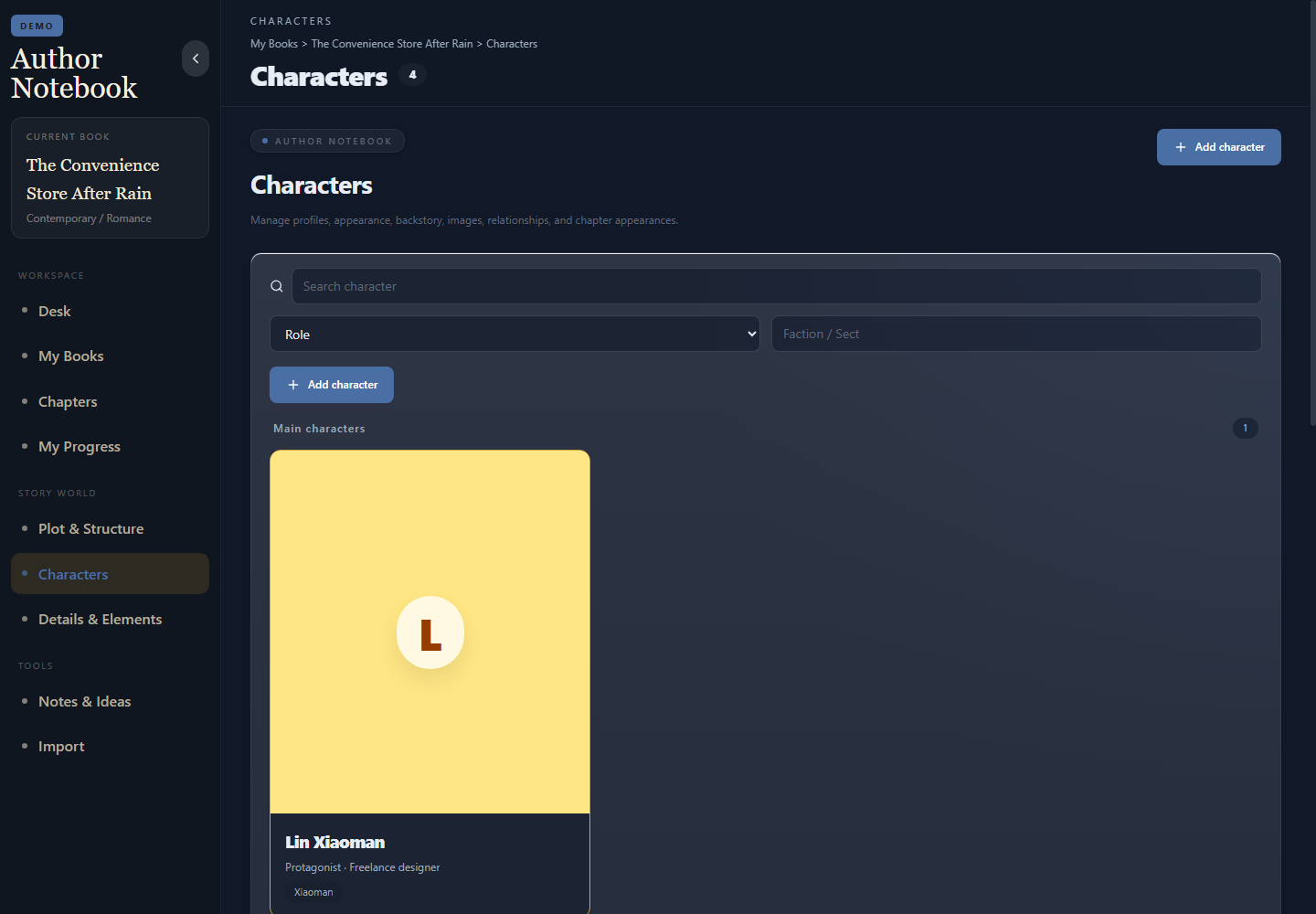
Characters is where you build a visual cast list and detailed character dossiers. Character cards show portrait, name, role, faction, border color, and category icon. Opening a character shows the Summary page first, then the full editing tabs.人物管理用于建立视觉化角色目录和详细角色档案。人物卡片会显示头像、姓名、定位、阵营、边框颜色和分类图标。打开人物后会先看到角色总览,再进入完整编辑标签。
Character Quick Setup角色快速设定
When you create a new character, a Quick Setup form asks for the essentials: name, role, a one-line summary, their main goals, and their core weakness. You can skip any field and fill it in later. After saving, a completion checklist appears on the character's page to suggest what to add next — appearance, backstory, relationships, and so on.新建角色时,快速设定表单会引导你填写核心资料:姓名、定位、一句话简介、主要目标和核心弱点。任何字段都可以跳过,之后再补。保存后,角色页面会显示完成度清单,提示你接下来可以补充什么——外貌、背景、关系等。
Character tabs人物标签
- Summary: a readable character sheet using existing data.角色总览:用已有资料生成易读的人物卡。
- Basic Info: name, alias, age, role, status, and other core facts.基本资料:姓名、别名、年龄、定位、状态等核心信息。
- Appearance: physical details, face claim/model reference, and optional reference URL.外貌:外貌设定、Face Claim/模特参考和可选参考链接。
- Personality & Background: traits, backstory, goals, conflict, and notes.性格与背景:性格标签、背景、目标、冲突与备注。
- Abilities & Items: abilities and owned items now live inside each character's profile, replacing the old standalone Details & Elements page.能力与道具:能力和持有道具现在整合进每个角色档案,取代了原本独立的设定细节页面。
- Images, Relationships, and Relationship Graph keep story links visible.图像、关系和关系图谱帮助你查看故事关联。
World & Setting世界与设定
World & Setting is the central hub for everything outside your manuscript: locations, factions, lore, timeline events, and reference materials. It was previously called Story World, and now also includes the Timeline and Materials Library.世界与设定是整理正文以外所有资料的中枢:地点、势力、世界观条目、时间线事件和参考素材。原名为"故事世界",现在还包含时间线与素材库。
Locations and factions地点与势力
Locations help you record countries, cities, schools, sects, shops, battlefields, rooms, and other places. Factions help you manage kingdoms, families, guilds, companies, secret organizations, armies, and similar groups. Both support nested hierarchy so you can organize sub-locations and branches under a parent entry.地点可以记录国家、城市、学校、宗门、商店、战场、房间等场所。势力可以管理王国、家族、公会、公司、秘密组织、军队等团体。两者都支持嵌套层级,方便在父条目下组织子地点或分支。
Timeline时间线
The Timeline inside World & Setting lets you record story events and link them to chapters for consistent ordering. The Visual Timeline view helps you see events by chapter order, story time, structure stage, or character arc. Timeline cards can connect to chapters, characters, locations, factions, images, foreshadowing, and payoff events.世界与设定中的时间线让你记录故事事件,并与章节关联,保持时间顺序一致。可视化时间线视图可以按章节顺序、故事时间、结构阶段或人物弧线查看事件,时间线卡片可以连接章节、人物、地点、势力、图片、伏笔和回收事件。
Materials Library素材库
The Materials Library is a searchable collection of reference images and web links stored inside World & Setting. Use it to save mood boards, map references, costume images, or research URLs without leaving the app. No AI is needed — search is text-based.素材库是世界与设定中的可搜索参考集合,用来存放参考图片和网页链接。你可以在不离开应用的情况下保存氛围板、地图参考、服装图片或研究网址。无需 AI,搜索为纯文字匹配。
Notes & Ideas灵感便签
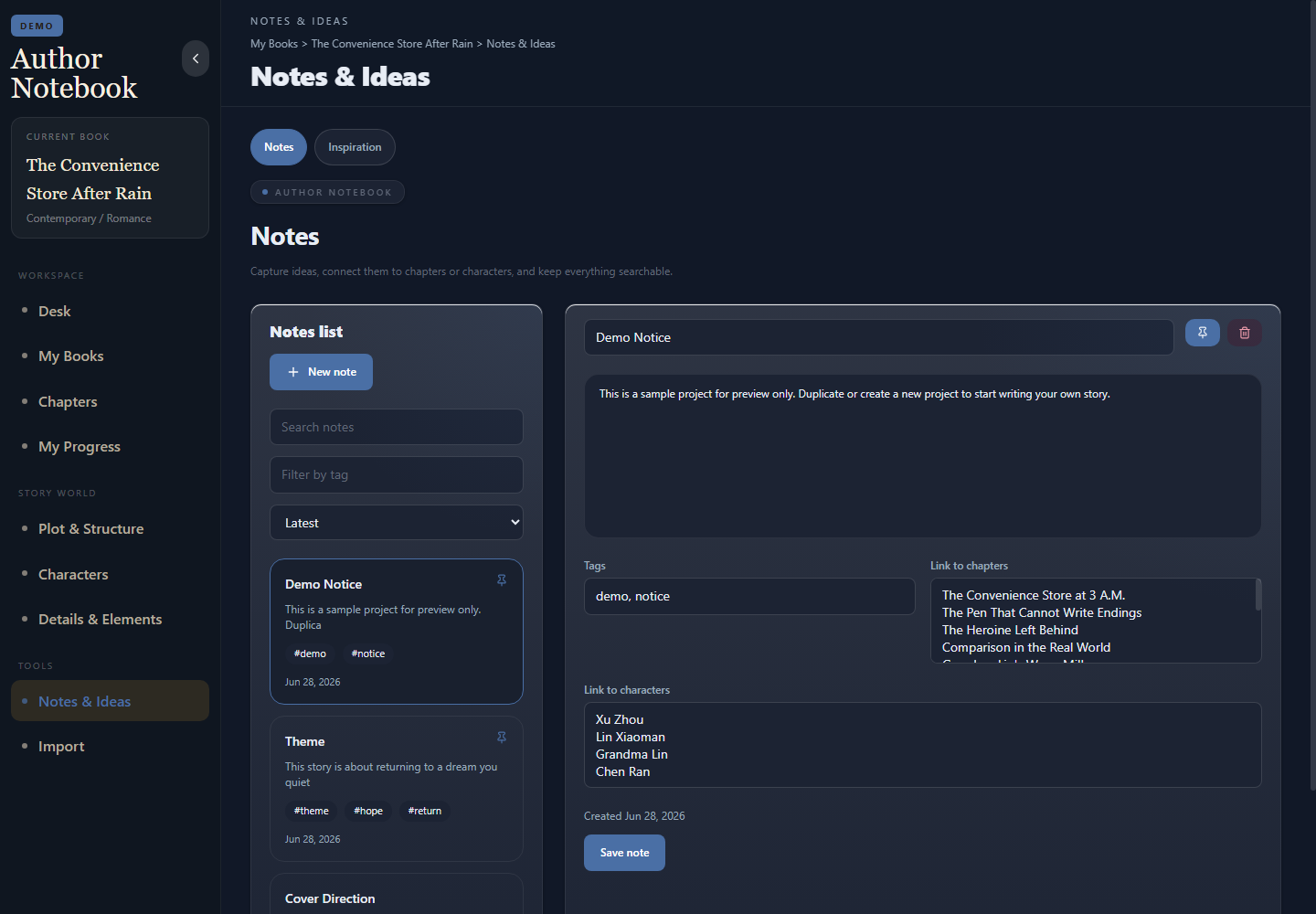
Notes & Ideas is the place for quick thoughts, scene scraps, reminders, research links, and inspiration. Notes can be linked back to characters, chapters, story settings, or details.灵感便签适合记录零散想法、片段、提醒、资料链接和灵感。便签可以关联到人物、章节、故事世界或设定细节。
Inspiration Board灵感板
The Inspiration Board supports text, image, link, quote, scene, character, location, plot-problem, and to-do cards. You can color cards, pin important ones, group them into sections, link them to story records, and open image cards in a larger preview.灵感板支持文字、图片、链接、引用、场景、人物、地点、情节问题和待办卡片。你可以为卡片上色、置顶、分组、关联故事资料,并打开图片卡查看大图。
Link cards open safely in a new tab. If a URL is invalid, the app will keep it as plain text instead of breaking the board.链接卡片会安全地在新标签打开。如果链接无效,系统会把它保留为普通文字,不会破坏灵感板。
Import Center导入中心
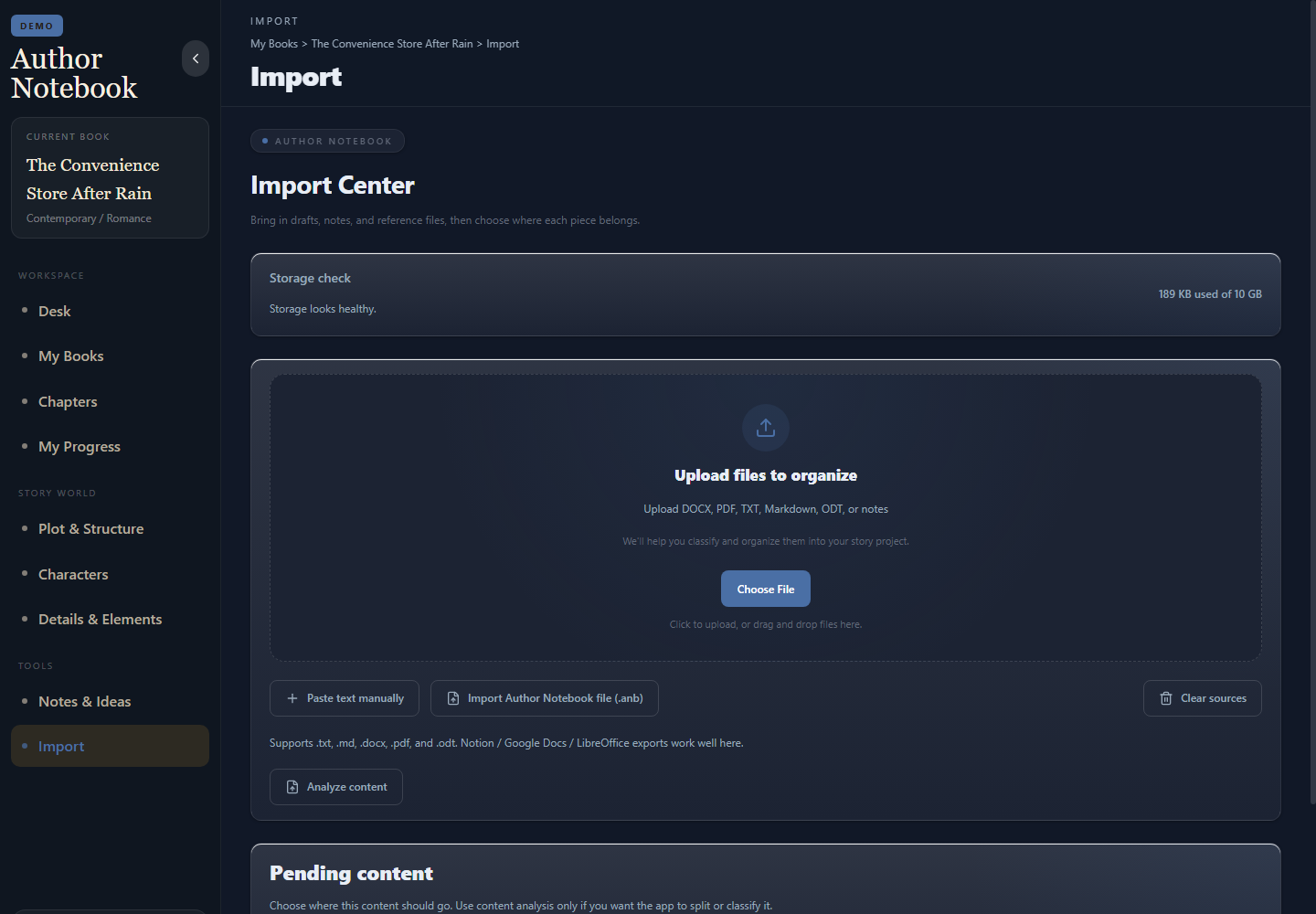
Import Center helps you bring old drafts and notes into Author Notebook. Upload files first, then choose where each file should go. Manual paste is still available, but it stays collapsed until you choose to use it.导入中心用于把旧稿和笔记带入作者笔记。你可以先上传文件,再选择内容要整理到哪里。手动粘贴依然存在,但默认会收起,只有需要时才展开。
Default import flow默认导入流程
- Upload DOCX, TXT, Markdown, PDF, ODT, or an Author Notebook file.上传 DOCX、TXT、Markdown、PDF、ODT 或作者笔记项目文件。
- The uploaded file appears at the top of Pending Content.新上传文件会出现在“待整理内容”的最上方。
- Choose a destination such as Chapters, Notes, Characters, Story Setting, Inspiration, Reference Material, or Custom Category.选择整理位置,例如章节、便签、人物、世界观、灵感、参考资料或自订分类。
- Click Import this file. Nothing is analyzed or auto-classified unless you explicitly choose Analyze / classify content.点击“汇入此文件”。除非你主动点击“解析内容分类”,否则系统不会自动拆分或分类。
If you import a Google Docs export, format chapter titles as Heading 1 before exporting to DOCX. Author Notebook can then split chapters more reliably when you choose content analysis.如果你从 Google Docs 导出,请先把章节标题设为 Heading 1,再导出为 DOCX。这样在你选择解析内容时,作者笔记可以更准确地拆分章节。
Cloud Projects云端项目
Cloud Projects lets you log in and sync selected workspaces through Supabase. Cloud is not a separate editor: opening a cloud project loads it into the normal Author Notebook workspace, so you keep using Chapters, Characters, Notes, Story Setting, and the same writing tools.云端项目允许你登录后通过 Supabase 同步指定工作空间。云端不是另一个编辑器:打开云端项目后,它会载入原本的作者笔记工作区,你仍然使用章节、人物、便签、世界观和同一套写作工具。
- Save locally first, then sync to cloud when available.先保存到本地,再在可用时同步到云端。
- If offline, changes remain local and can sync again when the connection returns.离线时,修改会先保存在本地;恢复网络后可以继续同步。
- Use Sync to Cloud and Restore from Cloud when you want manual control.需要手动控制时,可以使用“同步到云端”和“从云端恢复”。
- Log out from Settings or Cloud Projects when you are done.完成后可以在设置或云端项目页面登出。
Backups and .anb files备份与 .anb 文件
An .anb file is Author Notebook’s portable project backup format. Exporting a book as .anb keeps the project together so you can store it manually or move it to another device..anb 是作者笔记自己的便携项目备份格式。把一本书导出为 .anb 后,可以把项目资料打包保存,方便手动备份或迁移到新设备。
A project backup can include book metadata, chapters, characters, story settings, notes, details, progress, series information, covers, character images, and other supported assets.项目备份可以包含书本资料、章节、人物、故事世界、便签、设定细节、写作进度、系列资料、封面、人物图片和其他受支持素材。
Importing an .anb file creates a new project by default. It will not overwrite or delete existing books unless you explicitly choose a replace action.导入 .anb 文件默认会创建新项目,不会覆盖或删除现有书本,除非你明确选择替换操作。
Settings设置
Settings uses collapsible sections so the page stays calm. Open only what you need.设置页面使用折叠分区,保持界面简洁。只展开你需要调整的部分即可。
- Appearance: language and theme.外观:语言与主题。
- Writing Experience: font size, font family, line height, letter spacing, and focus settings.写作体验:字体大小、字体、行距、字距和专注设置。
- AI Features: optional and off by default. AI tools stay hidden unless you enable them and provide your own API key.AI 功能:默认关闭。除非你主动启用并提供自己的 API Key,否则 AI 工具会保持隐藏。
- Cloud & Backup: cloud sync, export, backup, and project file tools.云端与备份:云同步、导出、备份和项目文件工具。
- Account Settings: email, display name, password reset, and logout.账号设置:邮箱、显示名称、重设密码和登出。
- Beta Feedback: report bugs, suggest features, view updates, or contact the developer.Beta 反馈:报告问题、建议功能、查看更新或联系开发者。